


If you’ve ever sat down in front of a computer and felt a little unsure about where to start — you’re not alone. Millions of people feel exactly the same way. The good news is that a computer has far fewer parts than it looks like, and once you know what each one does, the whole thing starts to make a lot more sense.
Let’s take a tour.
The screen
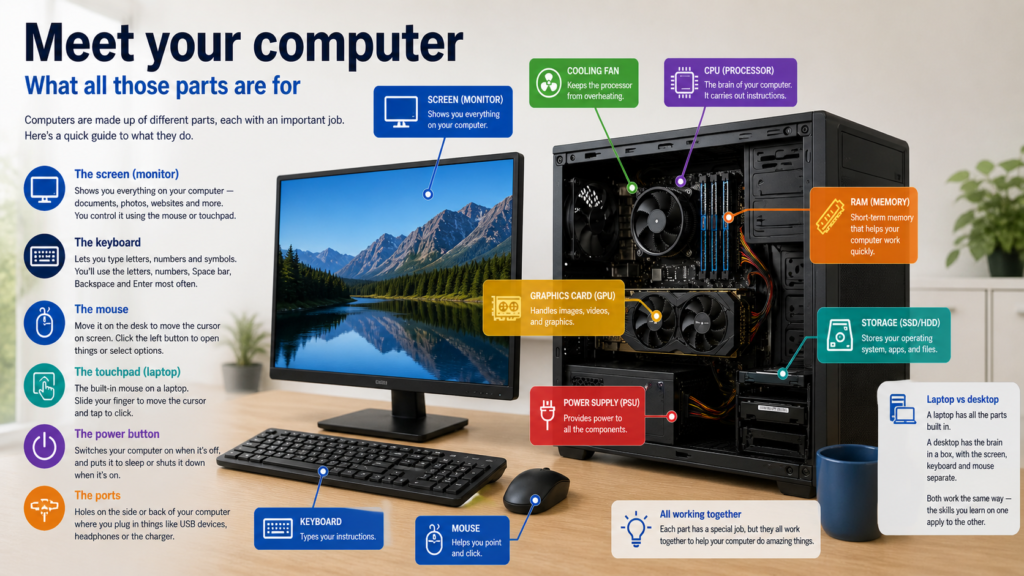
The screen is the big flat panel in front of you. It shows you everything that’s happening — your documents, photos, websites, and more. Think of it like a television, except instead of just watching, you’re also in control of what appears on it.
On a laptop, the screen is attached to the keyboard and folds up and down. On a desktop computer, the screen is a separate unit that sits on the desk — you may hear it called a monitor.
You don’t touch the screen on most computers (unlike your phone). Instead, you control what’s on the screen using the mouse or touchpad, which we’ll get to in a moment.
The keyboard
The keyboard is the flat panel covered in letters, numbers and symbols that you type on. It works the same way as the keypad on a phone, just bigger — and with a lot more keys.
Don’t worry about most of those extra keys for now. The ones you’ll use most often as a beginner are the letters and numbers, the big Space bar at the bottom, the Backspace key to fix mistakes, and Enter to confirm something or start a new line. That’s honestly enough to get started.
We cover the keyboard in much more detail in Article 4 of this module.
The mouse
The mouse is the small handheld device that you move around on the desk. As you move it, a little arrow (called the cursor) moves around on the screen in the same direction. When you want to open something or click a button on screen, you move the cursor over it and press — or “click” — the left button on the mouse.
It takes a little practice, but most people get comfortable with it within a day or two.
Not all computers come with a mouse. If yours didn’t, don’t worry — that’s what the touchpad is for.
The touchpad
The touchpad is the small flat rectangular area built into the keyboard on a laptop. It does the same job as a mouse — you slide your finger across it to move the cursor on the screen.
If you’ve ever used your finger to scroll on a phone, you already understand the basic idea. The touchpad is your built-in mouse, and you never need to charge it or connect it to anything.
The power button
This is the one button you absolutely need to know. The power button switches your computer on when it’s off, and puts it to sleep or starts the shutdown process when it’s on.
On a laptop, the power button is usually a small round or square button near the top of the keyboard — sometimes with a small circle-and-line symbol on it. On a desktop, it’s usually on the front or top of the box underneath the monitor.
We cover switching on and off safely in Article 2.
The ports — those holes on the side
Look at the sides of a laptop (or the back and front of a desktop), and you’ll see several small rectangular or oval holes. These are called ports, and they’re simply places to plug things in.
The most common ones you’ll come across are:
- USB ports — rectangular holes where you plug in a memory stick, a mouse, a phone charger cable, or other accessories. Most computers have two or three of these.
- Headphone jack — a small round hole, usually marked with a headphone symbol, where you plug in earphones or a headset.
- Charging port — on a laptop, there’s usually a port on the side specifically for plugging in the power cable to charge the battery.
You don’t need to know them all on day one. When you need to plug something in, look for the matching shape and it will usually be obvious.
The box (desktop computers only)
If you’re using a desktop computer, there’s a large box sitting somewhere near the monitor — either on the desk or on the floor. This box is the actual “brain” of the computer. It’s where all the important work happens. You don’t need to open it or touch it. Just know that it needs to be switched on for the computer to work, and it needs space around it so it doesn’t overheat.
Laptop vs desktop — does it matter?
A laptop has the screen, keyboard, touchpad, battery and brain all built into one portable unit. A desktop splits those parts up — brain in a box, screen separate, and usually a separate keyboard and mouse too.
For a beginner, both work the same way. The skills you learn on one apply directly to the other. The only real practical difference is that a laptop runs on a battery (so you need to charge it), while a desktop plugs directly into the wall and doesn’t have battery backup — which matters during load-shedding.
You’ve probably already seen one of these
If this is your first time using a computer at home, you may have come across one before at a government office, a library, a bank, or a school. The computers at those places work exactly the same way as the one in front of you. That experience — even just watching someone else use one — already gives you a starting point.
Try this now
Look at the computer in front of you — or think about one you’ve seen recently. See if you can identify the screen, the keyboard, and the power button. If you’re on a laptop, find the touchpad. If you’re on a desktop, find the box. You don’t need to press anything yet — just getting familiar with where everything is, is a great first step.
If you find this article helpful, please consider sharing with friends and family.
NEXT ARTICLE: Switching on, switching off – the right way