

Of all the things that make first-time computer users nervous, the mouse is near the top of the list. It feels awkward at first. The cursor moves when you don’t want it to, doesn’t move when you do, and clicking seems to require a level of precision that feels impossibly difficult when you’re just starting out.
Here’s the reassurance you need before we begin: every single person who uses a computer confidently today went through exactly this stage. The mouse feels unnatural for about a week and then suddenly — without you even noticing — it becomes second nature. Your hand learns it faster than your brain does.
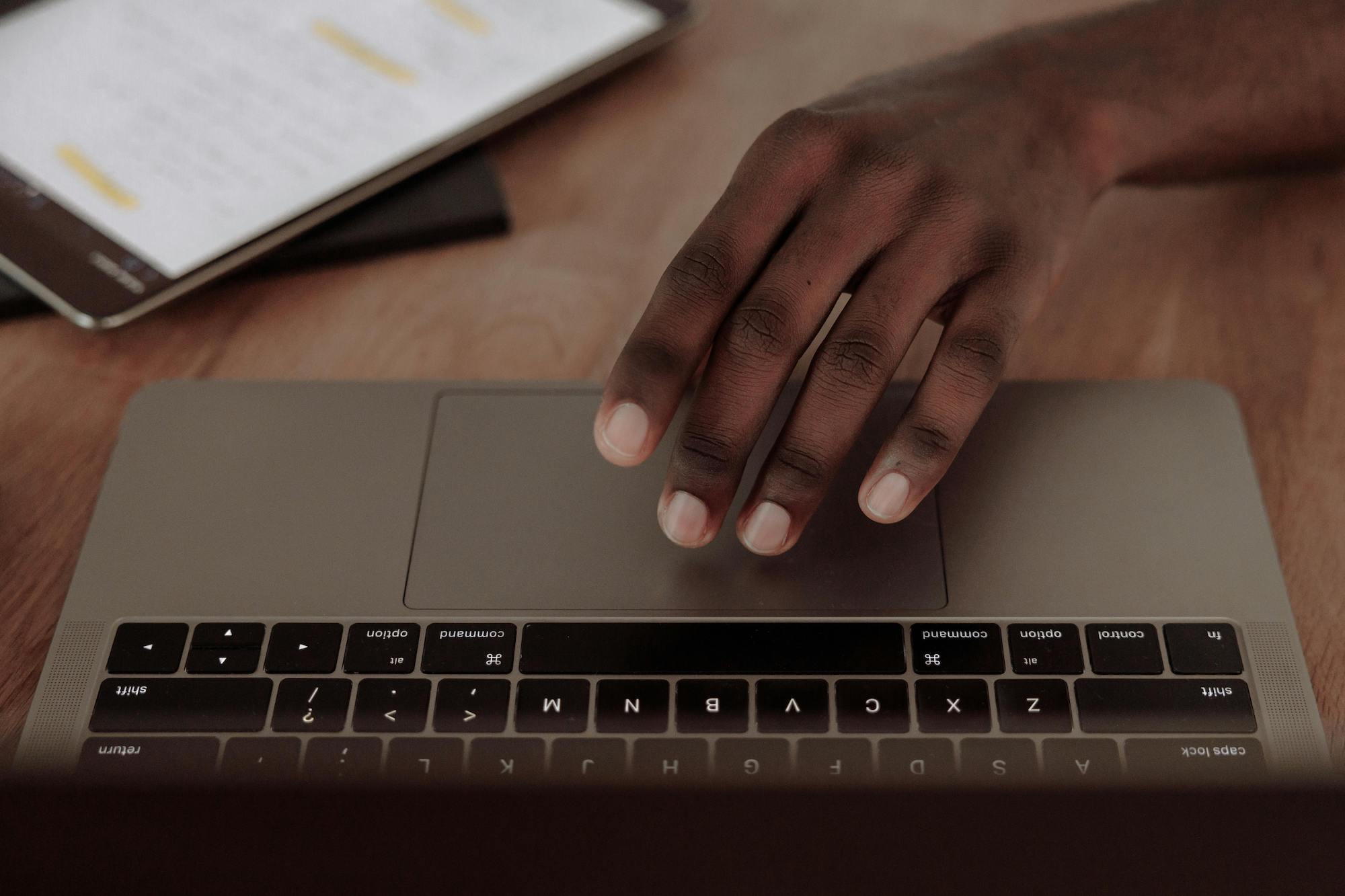
If your laptop doesn’t have a separate mouse and you’re using the touchpad instead — the flat rectangle built into the keyboard — this article covers that too. And if you’ve spent any time using a smartphone, you’ll find the touchpad surprisingly familiar.
Understanding the cursor
Before we talk about clicking, it helps to understand what the cursor is and how it behaves.
The cursor is the small arrow you see moving around your screen. It responds to your mouse or touchpad movements in real time — when you move the mouse to the right, the cursor moves right. When you slide your finger up the touchpad, the cursor moves up.
The cursor changes shape depending on what it’s hovering over:
- An arrow — the default. You’re pointing at something but not over anything interactive
- A hand with a pointing finger — you’re hovering over a link or something clickable. This is your cue that clicking here will do something
- A text cursor (thin vertical line, like the letter I) — you’re hovering over a text area where you can type
- A spinning circle or hourglass — the computer is busy doing something. Wait a moment before clicking anything else
- A double-headed arrow — you’re at the edge of a window and can resize it
Paying attention to what shape the cursor is tells you a lot about what your next action should be — even before you click.
The mouse — left click, right click and scroll wheel
A standard computer mouse has two buttons and a scroll wheel between them. That’s all you need to understand to use it effectively.
Left click
The left button is the one you’ll use for almost everything. A single left click:
- Opens a file or folder when you click on it once (on the desktop)
- Selects an item
- Presses a button on screen
- Follows a link on a website
A double left click opens programmes and files. If you single click on a programme icon on your desktop and nothing happens, try double clicking — two quick clicks in the same spot.
Common difficulty: Many beginners click too slowly when double clicking, or move the mouse slightly between clicks. The computer interprets this as two separate single clicks rather than one double click. The trick is to click twice quickly without moving your hand between clicks. It takes a little practice but clicks into place quickly — no pun intended.
Right click
The right button opens a context menu — a small list of options related to whatever you right-clicked on. Think of it as asking “what can I do with this?” Right-clicking on a file, for example, shows options like Open, Copy, Delete and Rename.
You’ll use the right click less often than the left, but it’s worth knowing it’s there. If you’re ever unsure what you can do with something on screen, right-click it and the options will appear.
The scroll wheel
The small wheel between the two buttons scrolls up and down through content — a webpage, a document, an email. Roll it away from you to scroll down, towards you to scroll up. This is far more convenient than clicking the scrollbar on the side of the screen and is one of those small things that makes computer use significantly smoother once you get used to it.
The touchpad — your built-in mouse
If you’re using a laptop without a separate mouse, the touchpad is your pointing device. It’s the flat, slightly recessed rectangle below the keyboard — usually about the size of a playing card.
Moving the cursor
Slide one finger across the touchpad surface and the cursor moves in the same direction on screen. The movement is relative — it doesn’t matter where on the touchpad your finger starts, only which direction and how far you move it.
If you run out of touchpad space mid-movement — your finger reaches the edge — simply lift your finger, place it back in the centre of the touchpad, and continue moving. The cursor stays where it was while your finger is in the air.
Clicking on a touchpad
Most laptop touchpads work in two ways:
Physical click: Press down on the lower portion of the touchpad until you feel a click. The left side is a left click, the right side is a right click — just like a mouse.
Tap to click: A light tap anywhere on the touchpad surface registers as a left click — without pressing down. This is often enabled by default on newer laptops. It requires less effort than pressing down but can take adjustment if your finger rests on the touchpad between movements and accidentally triggers clicks.
Scrolling on a touchpad
Place two fingers on the touchpad and slide them up or down together. This scrolls the page — up to go back, down to go further. This is the touchpad equivalent of the mouse scroll wheel and once you’re used to it, it’s very natural — similar to scrolling on a phone screen.
Common mouse and touchpad problems — and fixes
The cursor moves too fast or too slowly
If the cursor shoots across the screen with the tiniest movement, or barely moves even when you push the mouse across the desk, you can adjust the sensitivity.
On Windows:
- Click the Start button
- Click Settings (the gear icon)
- Click Bluetooth & devices (Windows 11) or Devices (Windows 10)
- Click Mouse
- Adjust the Mouse pointer speed slider to your preference
Start in the middle and move slightly in either direction until it feels right. Everyone has a different preference.
The cursor disappears
If the cursor seems to have vanished, simply move the mouse or slide a finger across the touchpad — it will reappear. Sometimes it blends into a white background or has moved to an edge of the screen off your immediate field of vision.
Double clicking isn’t working
If double clicking isn’t registering, the click speed may be set too fast for your natural rhythm. You can slow it down:
On Windows:
- Start → Settings → Bluetooth & devices → Mouse
- Click Additional mouse settings
- Under the Buttons tab, adjust the Double-click speed slider toward Slow
- Test it on the folder icon shown — if it opens with your double click, the speed is right
Touchpad keeps triggering accidentally while typing
This is a very common frustration — your palm brushes the touchpad while typing and suddenly the cursor has jumped somewhere else mid-sentence. Most laptops have a setting that automatically disables the touchpad while you’re typing.
On Windows:
- Start → Settings → Bluetooth & devices → Touchpad
- Under Taps, look for Touchpad sensitivity and set it to Low sensitivity or turn on Palm rejection if available
Alternatively, many people simply plug in a separate USB mouse and turn the touchpad off entirely — a perfectly valid solution.
The mouse cursor moves but clicking does nothing
Check that you’re clicking the left button — not the right, which opens a menu instead of performing the expected action. Also check that the mouse is properly connected to the USB port, or that the battery hasn’t died if it’s a wireless mouse.
A practice exercise — Solitaire
This sounds like a joke but it genuinely isn’t. Solitaire — the simple card game that comes free with Windows — has been teaching people to use a mouse for decades. It requires you to:
- Click to select cards (single click)
- Double click to move cards to the top piles
- Click and drag to move cards from one column to another
- Scroll through the deck
Every one of these actions is a real mouse skill used in everyday computing. Playing 20 minutes of Solitaire is more effective mouse practice than any tutorial because it’s engaging enough to hold your attention while the physical skill builds quietly in the background.
To find Solitaire on Windows: Click the Start button, type “Solitaire” in the search bar, and press Enter. Look for Microsoft Solitaire Collection — it’s free and already on your computer.
Click and drag — moving things around
One skill worth practising separately is click and drag — the action of moving something from one place to another on screen.
To click and drag:
- Position the cursor over the item you want to move
- Press and hold the left mouse button down — don’t release it
- While still holding, move the mouse to where you want the item to go
- Release the button to drop it in the new position
This is used for moving files between folders, rearranging items on your desktop, resizing windows, and more. The key is keeping the button held down throughout the movement — releasing too early drops the item wherever the cursor is at that moment.
Using a mouse vs touchpad — which is better?
Neither is objectively better — it’s entirely a matter of personal preference and what you get used to. That said, most beginners find a separate mouse easier to learn on because:
- The physical buttons give clearer feedback — you feel and hear the click
- It sits in your hand naturally and requires less precision than the small touchpad surface
- The scroll wheel is intuitive from day one
A basic wired USB mouse costs as little as R80 to R150 at most South African electronics or stationery shops. If you’re finding the touchpad frustrating, buying a simple mouse is a worthwhile investment that will make learning significantly easier.
Try this now
Open Microsoft Solitaire on your computer — click Start, type “Solitaire” and press Enter. Play one game. Pay attention to how you’re clicking and moving the cursor rather than focusing on winning. Notice when the cursor changes shape. Try clicking and dragging a card from one column to another. You’re not playing a game — you’re learning one of the most fundamental computer skills there is, and it happens to be enjoyable.
Was this article helpful? Please consider sharing with friends and family
PREVIOUS ARTICLE: Switching on, switching off — the right way
NEXT ARTICLE: Your keyboard — the keys you actually need