

The internet exists. Your device is connected to it. But to actually see anything on it — to visit a website, read an article, do your banking, or search for information — you need one more thing. You need a browser.
If the internet is a city and websites are the buildings in it, a browser is your car. It’s the vehicle that takes you from one place to another, remembers where you’ve been, and lets you navigate around. Without it, you can’t get anywhere.
This article explains exactly what a browser is, how to use one confidently, and the small but important details that tell you whether a website is safe before you type anything into it.
What is a browser?
A browser is an app — a programme on your device — that retrieves and displays websites. When you type a web address or click a link, the browser sends a request across the internet to the relevant server, receives the information back, and displays it on your screen as a readable page.
The most widely used browsers in South Africa and worldwide are:
- Google Chrome — the most popular by far, available on Windows, Android and iPhone. Recommended for South African users because it works reliably with local banking websites and government portals.
- Microsoft Edge — comes pre-installed on Windows computers. Perfectly functional and very similar to Chrome.
- Safari — comes pre-installed on iPhones and Apple computers. Works well on Apple devices.
- Mozilla Firefox — a well-respected independent browser, less common but reliable.
For most South African users, Chrome is the recommended choice. It is free, fast, widely supported, and handles the widest range of South African websites without compatibility issues. If you don’t already have it, search “Google Chrome download” on any browser and install it from Google’s official website.
The parts of a browser window
Before using a browser confidently it helps to know what you’re looking at. A browser window has several distinct areas:
The address bar — the long rectangular field at the very top of the browser window. This is where web addresses are typed. It also shows the address of whatever page you’re currently on. Click on it once to highlight it and start typing.
The back button — an arrow pointing left, usually at the top left of the browser window. Takes you back to the previous page you visited — like the back button on an Android phone but specific to the browser.
The forward button — an arrow pointing right, next to the back button. Takes you forward again after you’ve gone back.
The refresh button — a circular arrow, usually next to the address bar. Reloads the current page. Useful if a page hasn’t loaded properly or if you want to see the most current version of a page that updates regularly.
Tabs — rectangular labels along the top of the browser window, above the address bar. Each tab is a separate page open simultaneously. You can have multiple websites open at the same time, each in its own tab, and switch between them by clicking the relevant tab.
The bookmark bar — a strip below the address bar where you can save links to pages you visit regularly. Not always visible by default but easy to enable.
The settings menu — three dots or three horizontal lines at the top right corner of the browser. Contains all the browser’s settings and options. You rarely need this as a beginner.
The address bar — web addresses explained
A web address — also called a URL (Uniform Resource Locator, though you never need to say that) — is the unique location of a specific page on the internet. Just as every building in a city has a street address, every page on the internet has a web address.
Web addresses follow a consistent format. Take this example:
Breaking it down:
- https:// — indicates the connection is secure (the S stands for Secure). More on this shortly.
- www — stands for World Wide Web. Present on many addresses but not all — both versions usually work.
- capitecbank — the name of the organisation or website.
- .co.za — indicates a South African commercial website. Other common endings include .com (international commercial), .org (organisations), .gov.za (South African government), .ac.za (South African universities).
You don’t need to type https:// or www in most cases — the browser adds these automatically. Simply type the main part of the address, like capitecbank.co.za, press Enter, and the browser handles the rest.
The padlock — your most important safety indicator
Look at the address bar when you’re on any website. On the left side you’ll see a small icon — either a padlock or, on some browsers, a small information circle.
A padlock icon means the connection between your device and that website is encrypted — scrambled in a way that prevents anyone intercepting your information from reading it. This is indicated by the https:// at the start of the address — the S means secure.
What this means practically: On any website where you are entering personal information — a banking site, a government portal, a shopping site — you should see a padlock. If you don’t see one, do not enter any sensitive details.
What the padlock does not mean: A padlock does not mean the website itself is legitimate or trustworthy. It only means the connection to it is encrypted. A fake banking website can have a padlock too. The padlock is necessary but not sufficient — you also need to check that the address in the address bar is correct and spelled exactly right.
This is why we always emphasise going directly to a website by typing its address yourself rather than clicking links in messages — the address bar is your confirmation that you are where you think you are.
To note: Safari and some other browsers intentionally no longer show the traditional padlock icon in the address bar. Because HTTPS encryption is now the standard for virtually all websites, Apple determined the icon is redundant. Browsers now only flag websites as explicitly “Not Secure” if they use older unencrypted HTTP
Using tabs
Tabs are one of the most useful features of a browser and one of the least explained to beginners.
Opening a new tab:
- Press Ctrl + T on the keyboard
- Or click the small + symbol at the end of the row of tabs at the top of the browser
A new empty tab opens, ready for you to type a new web address. Your previous page remains open in its own tab — you haven’t lost it.
Switching between tabs: Click any tab at the top to bring it to the front. You can have as many tabs open as you like, though too many will slow older computers down.
Closing a tab: Click the small × on the right side of the tab. This closes that page without affecting any others. If you accidentally close a tab you wanted to keep, press Ctrl + Shift + T to reopen the most recently closed tab.
Why tabs are useful: Imagine you’re comparing two banking options, or reading an article while keeping your email open, or looking at a recipe while watching a video. Tabs let you keep multiple pages accessible simultaneously without losing any of them.
Bookmarks — saving places you want to return to
A bookmark saves a website address so you can return to it instantly without typing the address again. Think of it as a saved shortcut to a page you visit regularly.
To bookmark a page in Chrome:
- Go to the page you want to save
- Press Ctrl + D on the keyboard, or click the small star icon on the right side of the address bar
- Give the bookmark a name if you want to change it from the default
- Click Done
The bookmark is saved and accessible from the bookmarks bar below the address bar, or from the bookmarks menu.
Pages worth bookmarking from day one:
- Your bank’s official website
- SASSA’s official website if relevant
- Home Affairs booking portal
- Your email (Gmail or similar)
- TechForYou — so you can always find your way back
Browsing history — and when to clear it
Your browser keeps a record of every website you’ve visited — called your browsing history. This can be useful (finding a page you visited last week but didn’t bookmark) or a privacy concern (if others use your computer and you’d rather they didn’t see your browsing).
To view your history in Chrome: Press Ctrl + H
To clear your history:
- Press Ctrl + H
- Click Clear browsing data on the left
- Choose a time range and what to clear
- Click Clear data
Clearing your history does not delete bookmarks or saved passwords unless you specifically tick those boxes.
Private browsing — incognito mode: Pressing Ctrl + Shift + N in Chrome opens an incognito window — a private browsing session that doesn’t save history, cookies or form data when you close it. Useful if you’re using someone else’s computer, or if you simply don’t want a particular session recorded in your history. Note that incognito mode doesn’t make you invisible online — your internet provider and the websites you visit can still see your activity.
When a page doesn’t load
It happens regularly and is almost never serious. Here is a quick hierarchy of responses:
Press the refresh button (circular arrow) or Ctrl + R — sometimes a page simply didn’t load completely the first time.
Check your internet connection — is the Wi-Fi symbol showing? Have you run out of mobile data?
Check the address — is it spelled correctly? A single wrong letter sends you to a non-existent page.
Try again in a few minutes — occasionally a website’s server is temporarily overloaded or undergoing maintenance. This is the website’s problem, not yours.
Clear your browser cache — stored page data can sometimes cause loading problems. In Chrome: press Ctrl + Shift + Delete → tick Cached images and files → click Clear data. This clears stored junk without deleting your bookmarks or passwords.
A note on pop-ups and unexpected pages
Occasionally a website will open a new window or tab you didn’t ask for — or a box will appear over the page asking you to subscribe, accept cookies, or take some action.
Cookie notices — almost every website shows a notice asking you to accept or decline cookies (small files that remember your preferences and track your browsing). You can safely click Accept all on most legitimate websites. If you’d prefer not to be tracked, look for a Reject all or Manage preferences option. This is a cosmetic choice — either option is safe.
Newsletter pop-ups — boxes asking for your email address. Simply close them by clicking the × in the corner. You are never obligated to provide your email address to visit a website.
Alarming pop-ups claiming your device has a virus — these are almost always scams. Do not click anything inside the pop-up — not even the × to close it, as that click can sometimes trigger a download. Instead, close the entire browser tab by right-clicking the tab at the top and selecting Close tab, or press Ctrl + W.
Try this now
Open Chrome on your computer or phone. Click in the address bar, type
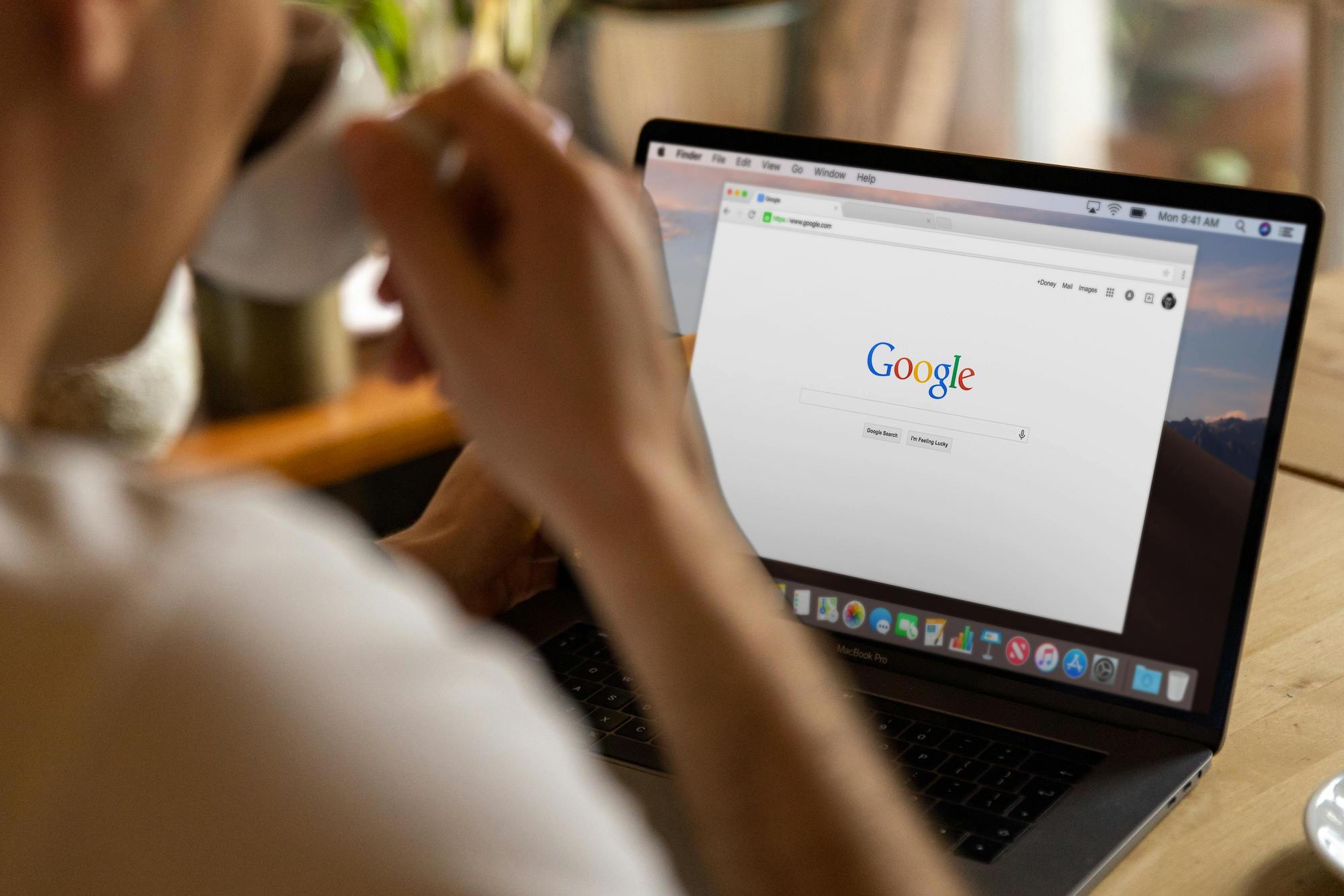
google.co.zaand press Enter. You’re now on Google’s South African homepage. Look at the address bar — you should see a padlock icon confirming the connection is secure. Now press Ctrl + T to open a new tab and typetechforyou.co.za— your new favourite resource. Press Ctrl + D to bookmark it so you can find it again instantly. You’ve just navigated to two websites, confirmed they’re secure, and saved one for future reference — all in under a minute.
Was this article helpful? Share with family and friends..
PREVIOUS ARTICLE: What is the internet?
NEXT ARTICLE: How to search for anything on Google