

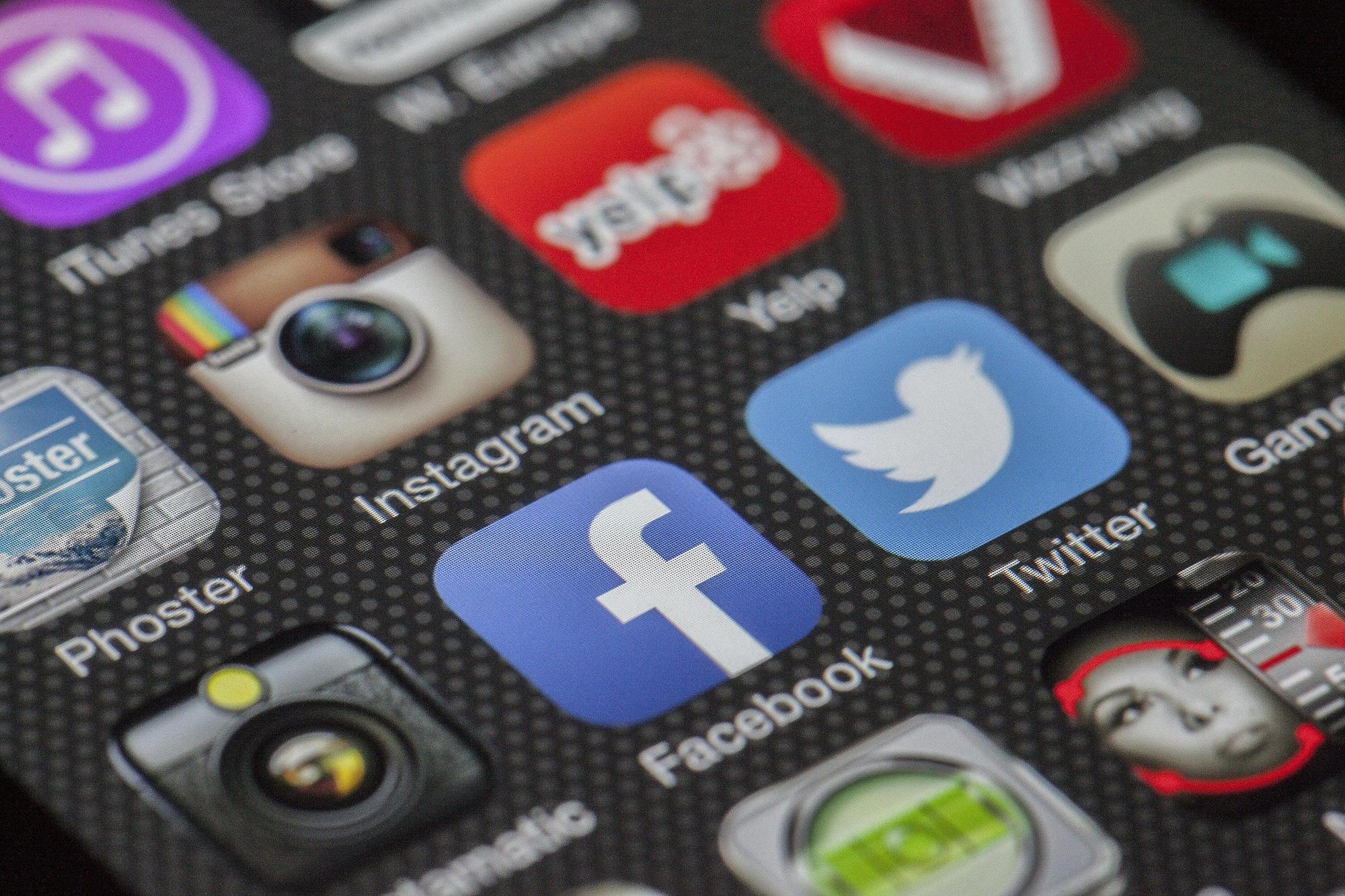
The word “app” gets used constantly — but if nobody has ever properly explained what one actually is, it can feel like everyone else knows something you don’t. This article fixes that. By the end you’ll know exactly what apps are, where to get them safely, which ones are worth having on your phone from day one, and — just as importantly — what to watch out for.
What is an app?
An app — short for application — is a programme that does one specific thing on your phone. Think of your phone as a toolbox. The toolbox itself is the phone. Each app is a tool inside it — designed for a particular job.
Some apps come already installed on your phone when you buy it. Others you choose to add yourself, as and when you need them. Just as you’d add a new tool to a toolbox when you have a new job to do, you add a new app to your phone when you need a new function.
Here are some everyday examples to make this concrete:
- WhatsApp — a messaging and calling tool
- Google Maps — a navigation tool that gives directions
- Capitec or FNB — banking tools that let you manage your account
- YouTube — a video watching tool
- Camera — a photography tool (this one comes built in)
- Google Chrome — a browsing tool for the internet
- EskomSePush — a load-shedding schedule tool specific to South Africa
Each app lives as an icon on your home screen or in your app drawer — the full list of all apps on your phone. Tap the icon once to open it.
Where apps come from — and why it matters
This is one of the most important things in this article, so please read it carefully.
On Android phones, apps are downloaded from the Google Play Store. This is a digital shop — entirely on your phone — where Google has checked and approved every app before making it available. It is the safe, official place to get apps.
The Play Store app is already on your phone. It has a colourful triangle icon — red, yellow, green and blue. To open it, find it on your home screen or search for “Play Store” using your phone’s search function.
The golden rule: only ever get apps from the Google Play Store.
There is another way apps can arrive on your phone — through a file sent via WhatsApp, email, or a website link. These files end in .apk and installing them is called sideloading.
Never install an APK file sent to you by anyone. This is the single most common way that harmful software — called malware — gets onto South African phones. Criminals send APK files disguised as useful apps, banking tools, or government services. Once installed they can access your banking apps, read your messages, or lock your phone and demand payment to unlock it.
If someone sends you a WhatsApp message with a file attachment and says “install this app,” do not do it — regardless of who they appear to be. If you want that app, find it yourself in the Google Play Store.
On iPhone: Apps come from the App Store — Apple’s equivalent of the Play Store. The same principle applies — only download from the App Store, never from links or files.
How to find and install an app
- Open the Google Play Store
- Tap the search bar at the top of the screen
- Type the name of the app you’re looking for — for example “Capitec” or “EskomSePush”
- Look through the results for the correct app — we’ll explain how to spot the real one in a moment
- Tap the app to open its page
- Tap the Install button — it’s green and prominent
- The app downloads and installs automatically
- Tap Open to use it immediately, or find its icon on your home screen
The whole process takes about a minute for most apps, depending on your connection speed.
How to spot the real app — and avoid fakes
The Play Store contains millions of apps — including some fake ones designed to look like legitimate services. Here’s how to tell the real from the fake:
Check the developer name. Below the app name on its Play Store page you’ll see who made it. The Capitec app should say “Capitec Bank.” The SASSA app should say something official. A banking app made by “AppDev Solutions 2024” is suspicious regardless of how it looks.
Check the number of downloads. Legitimate popular apps have been downloaded millions of times. A banking app with 500 downloads is not the real thing.
Check the rating and reviews. Real apps from established organisations have thousands of reviews. Read a few — do they sound like real users, or are they vague and generic?
Check the spelling. Fake apps often use names very close to the real thing — “Capitec Banc,” “FNB0fficial,” or “SASSA_Gov.” Look carefully at every letter.
When in doubt, go to the organisation’s official website and look for their “download our app” link — it will take you directly to the correct Play Store listing.
Free vs paid apps — and in-app purchases
Most useful everyday apps are completely free to download and use. However there are a few pricing models worth understanding:
Free apps — downloaded and used at no cost. The majority of apps you’ll ever need fall into this category. WhatsApp, Google Maps, EskomSePush, most banking apps, Gmail — all free.
Paid apps — you pay once to download them. Less common than they used to be. The price is shown on the Install button instead of the word “Free.”
Free apps with in-app purchases — the app is free to download but offers optional extras you can pay for inside the app. Games often work this way. You’ll see “In-app purchases” written in small text on the app’s Play Store page. These apps are safe to download — just be aware that they may prompt you to spend money while using them.
Subscription apps — free to download but require a monthly or annual payment to use fully. Netflix and Spotify work this way. The Play Store page will indicate this.
Important for parents and grandparents: If a child uses your phone, be aware that games with in-app purchases can rack up real charges if payment details are saved on the device. You can set up a PIN requirement for all purchases in Play Store settings to prevent this.
Recommended starter apps for South Africans
These are the apps worth having on any South African smartphone from day one. All are free.
Communication and everyday use:
- WhatsApp — messaging, calls and voice notes. Essential.
- Google Maps — navigation and directions, works offline if you download your area in advance
- Google Chrome — the best browser for South African websites and banking portals
- Gmail — your email, if you’ve set up a Google account
South African essentials:
- EskomSePush — real-time load-shedding schedules for your specific area. Sends notifications before your stage starts so you’re never caught unprepared
- Your bank’s official app — Capitec, FNB, Absa, Nedbank or Standard Bank. Find it by searching the bank’s full name in the Play Store and checking the developer name carefully
Useful extras:
- Google Translate — translates text, speech or even photographs of text between languages including Afrikaans, Zulu, Xhosa and English
- YouTube — for video content of every kind. Use on Wi-Fi to protect your data bundle
- Checkers Sixty60 or Woolworths Dash — grocery delivery apps, increasingly useful across South African urban areas
How to delete an app you no longer need
Deleting an app — also called uninstalling it — removes it from your phone. It does not damage your phone, delete your contacts, or affect any other apps. If you change your mind you can always reinstall it from the Play Store for free.
On Android:
- Find the app icon on your home screen or app drawer
- Long press it until a menu appears or it starts to wobble
- Tap Uninstall or drag it to the Uninstall option at the top of the screen
- Tap OK to confirm
Alternatively: Open the Play Store → tap your profile picture → Manage apps and device → Manage → find the app → tap it → tap Uninstall.
On iPhone:
- Long press the app icon until a menu appears
- Tap Remove App
- Tap Delete App to confirm
Keeping apps updated
App developers regularly release updates — improved versions of their apps that fix problems, add features and importantly, patch security vulnerabilities. Keeping your apps updated is part of keeping your phone safe.
Updates happen automatically on most phones when connected to Wi-Fi — which is another good reason to connect to home Wi-Fi regularly. You can also update manually: open the Play Store → tap your profile picture → Manage apps and device → tap Update all.
One important warning about fake update notifications: If a pop-up appears on a website or in a browser saying “Your WhatsApp needs to be updated — click here” or “Your phone software is out of date — download now,” do not tap it. Legitimate app updates only come through the Play Store, never through a pop-up on a website. These fake update prompts are a common way to trick people into installing malware.
Real updates arrive quietly in the Play Store with no drama. Fake ones shout urgently and ask you to act immediately — the same pattern we saw with scams in the safety module.
A quick summary — the rules that keep you safe
- Only install apps from the Google Play Store — never from WhatsApp files, email attachments or website links
- Never install an APK file sent to you by anyone for any reason
- Check the developer name and download count before installing any app
- Fake update pop-ups on websites are scams — ignore them
- Deleting an app is safe and reversible — don’t keep apps you don’t use
- Update your apps on Wi-Fi to keep them secure without burning data
Try this now
Open the Google Play Store on your phone and search for “EskomSePush.” Check the developer name — it should say Fuzz Technologies or similar — and look at the number of downloads. Install it if you don’t already have it. It’s one of the most practically useful apps for daily life in South Africa and takes about 30 seconds to set up. Once installed, enter your suburb and it will tell you exactly when your next load-shedding slot is.
You’ve completed the Phones module — well done. Head back to choose your next topic, or ask Tina if you have any questions.
Was this article helpful? Consider sharing with friends and family.
PREVIOUS ARTICLE: Understanding data and Wi-Fi