

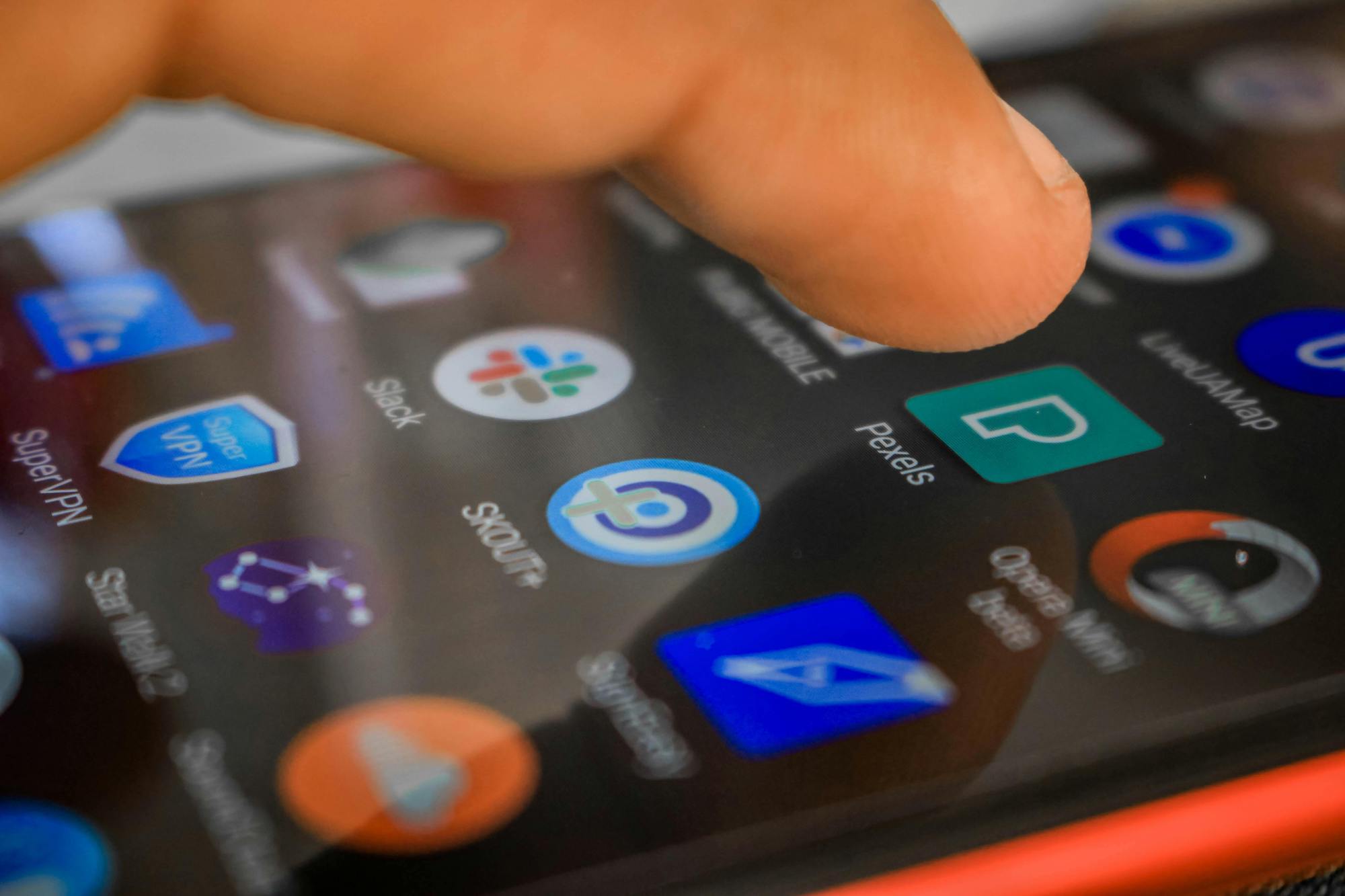
If you’ve ever used a finger to scroll through WhatsApp messages or tapped a contact’s name to open a conversation, you already know the fundamentals of using a touchscreen. You’ve been doing it naturally without realising it has a name or a set of rules.
This article puts words to the gestures you may already be using by instinct — and adds a few more that will make your phone significantly easier to use every day. There are only six gestures worth knowing. Master these and you can navigate any app on any smartphone.
A quick note before we start
Touchscreens respond to the electrical charge in your fingertip — which is why they don’t work when you’re wearing gloves, or sometimes when your hands are very cold or very dry. If your screen isn’t responding, try warming your hands first or moistening your fingertip slightly. A dirty or cracked screen protector can also reduce sensitivity — worth knowing if your phone has been less responsive lately.
Gesture 1 — The tap
What it is: A single, brief touch of one finger on the screen, then lift immediately.
What it does: Opens things. Selects things. Presses buttons. The tap is the touchscreen equivalent of a mouse click on a computer — it’s the gesture you’ll use most often.
When to use it:
- To open an app — tap its icon once
- To answer a call — tap the green button once
- To send a WhatsApp message — tap the send arrow once
- To select an option from a menu — tap it once
Common mistake: Pressing too hard or holding too long. A touchscreen doesn’t need pressure — it needs contact. A light, brief touch is all it takes. If you press and hold, something different happens (see the long press below).
Gesture 2 — The double tap
What it is: Two quick taps in the same spot in rapid succession.
What it does: Zooms in on whatever you tapped — a photo, a webpage, a map. Tap twice in the same spot again to zoom back out.
When to use it:
- To zoom into a photo to see it more clearly
- To zoom into text on a webpage that’s too small to read
- To zoom back out again after zooming in
Practical tip: If you’ve zoomed in on a webpage and the text has gone too large or the layout looks strange, double tap to zoom back out and it will return to normal.
Gesture 3 — The long press
What it is: Touch the screen and hold your finger in place for about 2 seconds without moving it.
What it does: Reveals hidden options. Think of it as right-clicking a mouse on a computer — it opens an extra menu of things you can do.
When to use it:
- Long press on an app icon on your home screen to move it, delete it, or see app info
- Long press on a word in a message to select it for copying
- Long press on a photo in your gallery to select it
- Long press on a WhatsApp message to see options like reply, forward, delete or star
Common confusion: Many people accidentally long press when they mean to tap, especially when they’re nervous or unsure. If an unexpected menu appears, don’t panic — press the back button or tap somewhere else on the screen to dismiss it. Nothing harmful has happened.
Gesture 4 — The swipe
What it is: Place one finger on the screen and slide it in a direction — up, down, left or right — then lift.
What it does: Scrolls and moves between screens. This is how you read through a long page, browse through photos, or move between different screens on your phone.
When to use it:
Swipe up — scrolls down through content. This feels counterintuitive at first — swiping up moves the content upward so you see what’s below. Think of it like pushing a piece of paper upward on a table to read further down the page.
Swipe down — scrolls back up through content, or on the home screen pulls down the notification bar (more on this below).
Swipe left or right — moves between screens. On your home screen, swiping left or right moves between pages of apps. Inside a photo gallery, swiping left or right moves to the next or previous photo.
Swipe down from the very top of the screen — this is one of the most useful gestures on any Android phone. It opens the notification bar and quick settings panel — the strip that shows your recent notifications (missed calls, messages, app alerts) and gives you quick access to settings like Wi-Fi, mobile data, Bluetooth, the torch and silent mode.
Gesture 5 — The pinch
What it is: Place your thumb and index finger on the screen and either move them apart (pinch out) or bring them together (pinch in).
What it does: Controls zoom. Pinching out zooms in — making things bigger. Pinching in zooms out — making things smaller.
When to use it:
- Viewing a photo — pinch out to zoom into a face or detail, pinch in to zoom back out
- Reading a webpage — pinch out to make the text larger if it’s too small to read comfortably
- Using Google Maps — pinch out to zoom into a specific area on the map, pinch in to see a wider view
Practical tip for older eyes: If you find yourself constantly struggling to read text on websites because it’s too small, pinch out to zoom in as your first response. It’s faster than searching for a zoom setting and works on almost every website and app.
Gesture 6 — The drag
What it is: Press and hold on something, then — without lifting your finger — slide it to a new position on the screen, then release.
What it does: Moves things. Most commonly used to rearrange app icons on your home screen.
When to use it:
- To move an app icon to a different position on your home screen — long press it until it lifts slightly, then drag it where you want it
- To move an app into a folder — drag it on top of another app and a folder is created automatically
- In some apps, to drag and reorder items in a list
The difference between a swipe and a drag: A swipe is a quick, light movement. A drag starts with a hold and involves moving something specific from one place to another. The key is the initial hold — if you hold first, then move, you’re dragging.
The notification bar — worth understanding on its own
When you swipe down from the very top of your screen, you open the notification bar. This single gesture gives you access to more useful shortcuts than almost anything else on your phone. Here’s what you’ll find:
Notifications — a list of recent alerts. Missed calls, WhatsApp messages, app updates, and system messages all appear here. Tap any notification to open the relevant app. Swipe a notification to the left or right to dismiss it.
Quick settings tiles — small icons at the top of the panel that toggle common settings on and off with a single tap:
- Wi-Fi — tap to connect or disconnect from Wi-Fi
- Mobile data — tap to turn your data on or off. Turning data off when you don’t need it is one of the easiest ways to make your data bundle last longer
- Bluetooth — for connecting wireless earphones and other devices
- Torch — tap once and your phone’s back camera flash becomes a torch. Tap again to switch it off. During load-shedding this is one of the most-used features on any South African’s phone
- Silent / vibrate / sound — tap the sound icon to cycle between full sound, vibrate only, and silent
- Airplane mode — turns off all wireless connections. Used on flights but also useful if you want to stop all notifications temporarily
On most Android phones, swiping down a second time expands the quick settings panel to show more tiles.
When the screen doesn’t respond
If the screen stops responding to your touches there are a few common causes and simple fixes:
Wet hands or gloves — dry your hands and try again.
Screen protector issues — an old, cracked or poorly fitted screen protector can interfere with touch sensitivity. Try removing it if it’s lifting at the edges.
The app has frozen — press the home button to exit and try reopening the app.
The phone needs a restart — if the screen is completely unresponsive, hold the power button until options appear, then tap Restart. If that doesn’t work, hold the power button and volume down together for about 10 seconds to force a restart.
Screen timeout has made it go dim — press the power button once to wake it up and try again.
A summary — the six gestures
| Gesture | How to do it | What it does |
| Tap | Brief single touch | Opens, selects, presses |
| Double tap | Two quick taps | Zoom in and out |
| Long press | Hold 2 seconds | Reveals extra options |
| Swipe | Slide finger in a direction | Scrolls, moves between screens |
| Pinch | Two fingers together or apart | Zoom in and out |
| Drag | Hold then move | Moves items |
Try this now
Open your photo gallery and try all six gestures in one go. Tap a photo to open it. Double tap to zoom in. Pinch out to zoom in further, pinch in to zoom out. Swipe left to see the next photo. Long press on a photo to see the selection options that appear. Press the back button to go back to the gallery. You’ve just used every gesture on this list — and you did it all in one place.
Was this article helpful? Please share with friends and family.
PREVIOUS ARTICLE: Getting to know your phone — what each button does
NEXT ARTICLE: Making calls and sending messages — step by step